Google Transcribe is a new feature of the Google Translate app and, in this post, we’re going to show you how to use Google Transcribe quickly and easily.
As part of our ultimate guide to Google Translate, we introduced this cool new tool that enables real time transcriptions to your language from people who are speaking in another language.
This is the best page that you will find on How to Make Money With Google AdSense. Here, we will present to you the best Google AdSense Tips and Strategies so that you can finally, once and for all, learn how to make money with AdSense.
This article is written for both those who are new to the AdSense world and want to discover how to make money with AdSense and for those who have implemented AdSense on their blogs or websites but are not making any money from Google AdSense.
How To Connect Kindle Fire to PC or Laptop Computer
In this article, I will tell you how to connect your Kindle Fire to your PC or laptop. This can be great, especially if you want to copy movies from your PC or laptop to your Kindle or copy books from your PC to your Kindle.
There are so many people who buy or are gifted their Kindle Fire and all they do is read books on it. Your Kindle Fire can be used for so much more. In fact, my mom, who has an iPad, just asked me last night what I was doing as I had my Kindle Fire in my hand. “I am watching a movie,” I said. “Oh,” she replied, “I thought Kindle’s were only for reading books.” Such iPad presumption!
It´s asked time and again: ¨How Do I Save YouTube Videos On My Computer?¨ In this article, we will walk you through how to download YouTube videos in MP4 format to your computer so that you can have them stored locally on your hard drive.
If you are interested in how to tell if someone has blocked you from Skype, we have the answer that you are looking for. Now, you will know if someone is just not there or if they have blocked you from communicating with them on Skype.
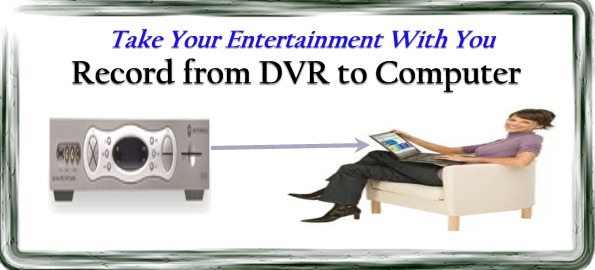
In this how to DVR to computer post, we show you how to transfer shows and movies from your DVR to your computer. If you want to transfer your recorded DVR entertainment to your computer, this post is for you.
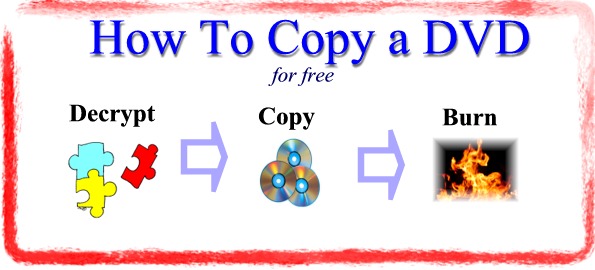
This article shows you how to copy a DVD for free. If you want to know how to copy DVD to DVD, this article will show you how to copy a DVD and just how easy it is.
For the tech savy who want the quick solution without the details, here are the 5 steps on how to copy a DVD quickly and for free:
Step 1: Make sure that you have installed the DVD43 decryption software.
Step 2: Download and install DVD Shrink, which will allow you to copy the DVD contents to your hard drive and re-size it if necessary.
Step 4: Use DVD Shrink to copy a DVD .ISO file to your computer.
Step 5: With your blank DVD in the drive, use Image Burner to burn the .ISO file to the blank DVD. Usually takes about 10-20 minutes and Voila! — You’ve done it.
In this article, “Copy DVD To Hard Drive“, we will answer the question, “Can I Copy A DVD Onto My Hard Drive?”. In fact, you can copy a DVD to your hard drive and it’s not that difficult. It’s even easier than if you want to Copy DVD to DVD!.
In this article, I will illustrate to you how to make a Favicon for your website.
First, we will look at the simple steps of how to make a favicon for your website followed by a short how-to video so that you can follow along.
Following that, we’ll go into more detail about what a favicon is and how to choose your website Favicon: Should it be your company name, logo, or another graphic?
Now, let’s delve right into how to quickly create the best favicon for your site.
Create Your Website Favicon in Four Simple Steps
A favicon for your website can be generated in 4 simple steps. I have outlined these steps below and each is articulated in the short how-to video below.
Visit the website favicon.io: This site is the best website for favicon generation and it’s free.
Generate your logo from text or image: Many will choose to use their company logo as their favicon, or if that’s too large, others will choose one or two letters as their favicon.
Download the favicons to your computer: Favicon.io will generate your favicons in many differents sizes.
Upload to website and add code in the <head> section of your pages: You will want to add a reference to your favicon location in the head section of your website. If you use WordPress, your theme probably will have an easy way for you to do this.
Video: How To Create A Favicon For Your Website
In this video, I will illustrate how to make a Favicon for your website in 4 simple steps.
What Is a Favicon
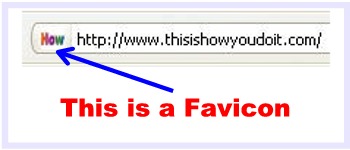
Simply put, a Favicon (also called a website icon, among many other nicknames) is that little icon that you see up in the browser bar next to your website name. Here is a picture of the favicon on this site right now:
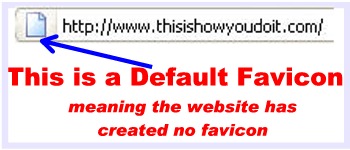
If you do not implement a favicon, your website will use the default Favicon which looks something like this:
A favicon is not required on your website, but it is good to have because it makes your website standout from sites that do not have favicons.
People take subtle notice of it in the browser bar, but, more importantly, people see this icon in their bookmarks which makes your site stand out more.
Take a look at the photo below to see how favicons make your site standout among other bookmarks and favorites.
Thus, while a favicon will not bring your website massive amounts of traffic, it will benefit you with small amounts of return traffic over the long haul. Plus, it simply makes your site stand out just a little bit more when people visit it.
How to Choose A Favicon For Your Website
Creating a favicon for you website is actually not that difficult as you saw in the steps and video above.
The difficult part is determining what you want your favicon to be.
Should your favicon be your company name, your company logo, or some derivative of one or the other?
Though this may seem like it is an easy choice, it is not due to the size limitations of the favicon.
If you have a long company name, such as we do (https://thisishowyoudoit.com), you can not use the whole name because it will not fit. The size of that little icon is very small.
Let’s take a look at the favicons of two prominent tech companies: Intel and Microsoft.
Whose whole company name do you think would fit in the icon? You probably guessed right. Take a look at their respective favicons below:
Intel Favicon:
Microsoft Favicon:
As you can see, the Intel logo works nicely as a favicon for Intel because the name is not too long. In Microsoft’s case, they simply chose the letter M as a favicon because their name and logo are too large to make it into a favicon.
In this case of ThisIsHowYouDoIt.com, our name is far too long to be a favicon. However, just using the first letter of “T” did not really represent what we are about. We narrowed it down to two choices “DoIt” or “How”. We ended up choosing “How” simply because it was very simple and also the word “DoIt” (which is great because it represents what we are all about) does not come across very well in a small icon.
You can see the term “how” in our favicon above in your browser tab. The larger version looks like this:
Once you have decided what you want your favicon to be — and sometimes the only way to know this is through experimentation — you are now ready to use the instructions above to create your favicon.
How to Make a Favicon: Conclusion
On this page, we have brought you detailed textual and video instructions on how to make a favicon.
Favicons distinguish your site by adding an icon next to your website name and they give your site a more professional look and feel.
If you do not have a favicon, it’s time you put one on your site. It doesn’t take that long and its well worth the effort.
So get out there and make a favicon for your website!
PS: Those who enjoyed this page also found the page How To Resize Pictures page very useful.
In the new age of LCD TVs, many of you want to know How To Connect Computer To TV. When you connect your computer to your LCD TV, you open up a world of possibilities.
Many people like to connect computer to TV for entertainment purposes. If you are having a party, and you would like to show people pictures or videos that you have taken, this is a terrific way to show everybody in the room.

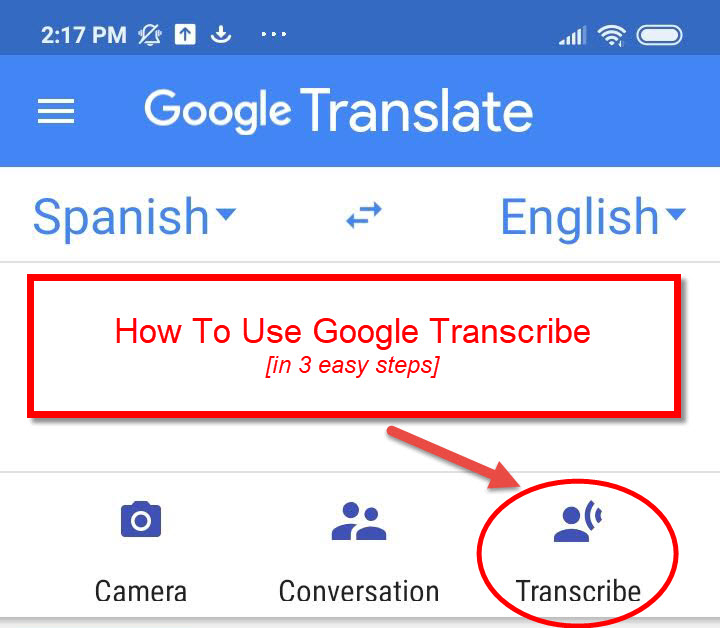
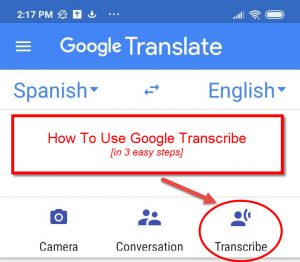 Google Transcribe is a new feature of the Google Translate app and, in this post, we’re going to show you how to use Google Transcribe quickly and easily.